
Setting Up a Passkey for Your Gordon Account
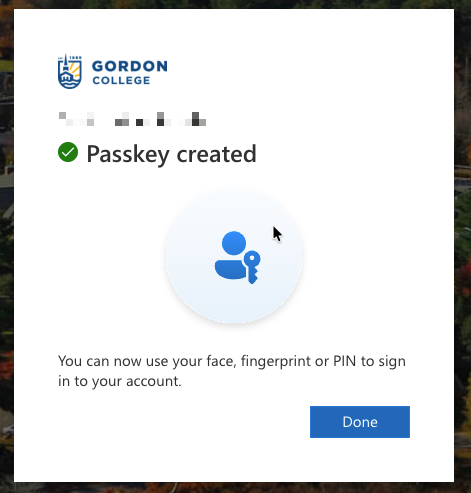
Passkeys allow you to securely sign in to your Gordon account using your face, fingerprint or device PIN instead of entering a passphrase or receiving a verification code.
There are several ways to set up a passkey depending on your device, operating system, browser and preferred passkey provider.
Please note: The screenshots and instructions in this article demonstrate common setup methods. They may not exactly match what you see on your device. The available options, wording and order of prompts may vary depending on your configuration.
Before you begin
Make sure you have:
- A compatible computer or mobile device.
- A PIN, passcode or biometric security feature enabled on your device.
- Access to your existing Gordon authentication method.
- An up-to-date web browser or Microsoft Authenticator app, depending on your chosen setup method.
Choosing where to save your passkey
There are several providers that can securely store passkeys. Below are some common options:
| Passkey Provider | Best For |
|---|---|
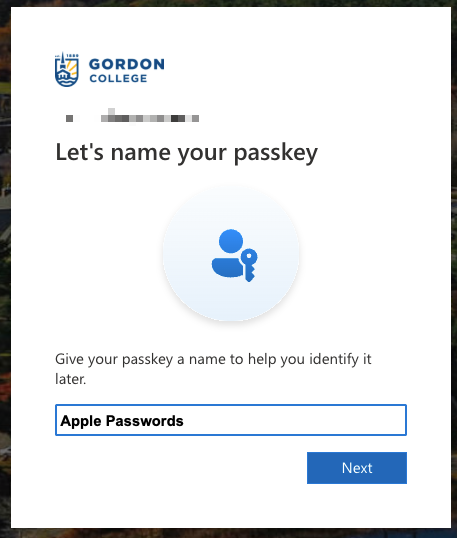
| Apple Passwords | Users who primarily use Apple devices. |
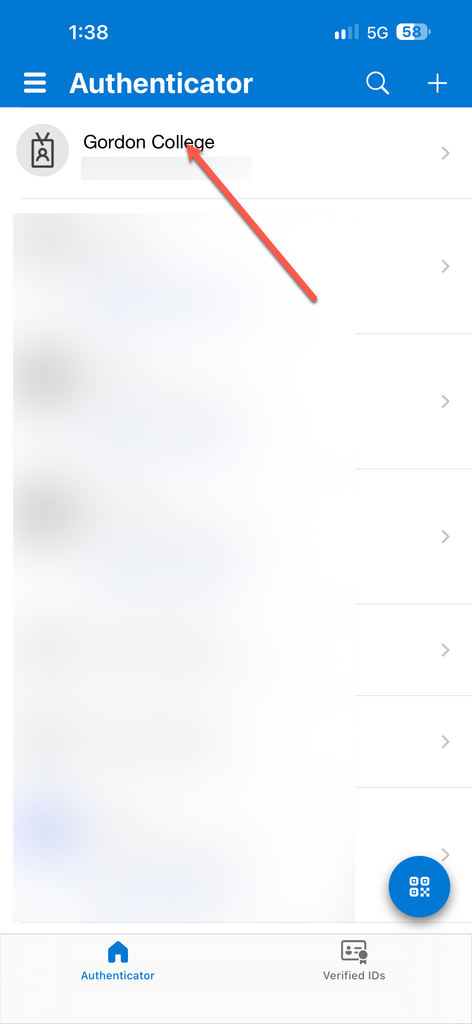
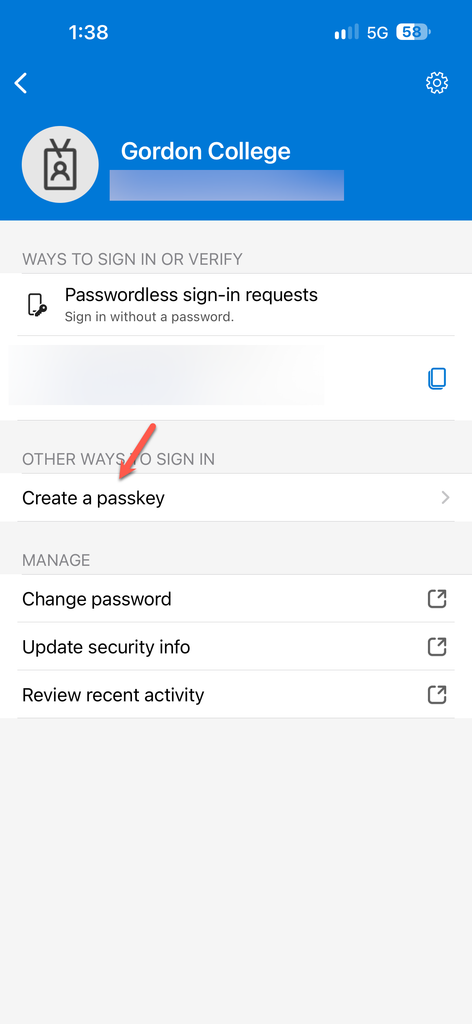
| Microsoft Authenticator | Users who prefer to store their passkey in the Microsoft Authenticator app on their phone. |
| Google Chrome | Users who primarily use Google Chrome. |
Other compatible passkey providers may also be available, including third-party passphrase managers and hardware security keys. You are not limited to the providers covered in this article.
Choose the provider that best fits your devices and how you typically sign in to your Gordon account. You can also register more than one passkey.
Getting Started
When signing in to your Gordon account, you may be prompted to set up a passkey.
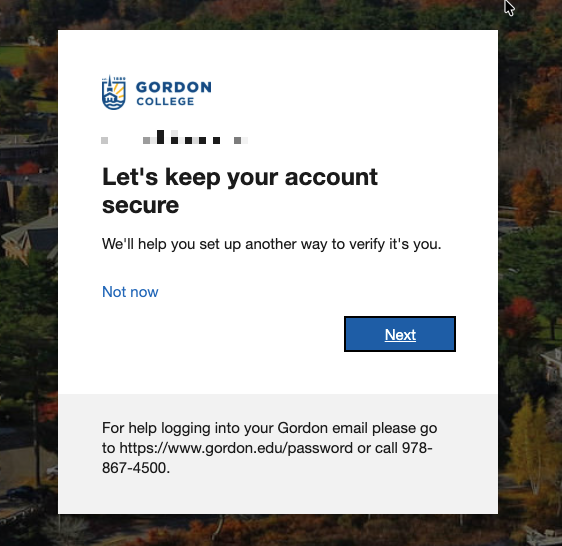
Step 1: When you see the message Let's keep your account secure, select Next.
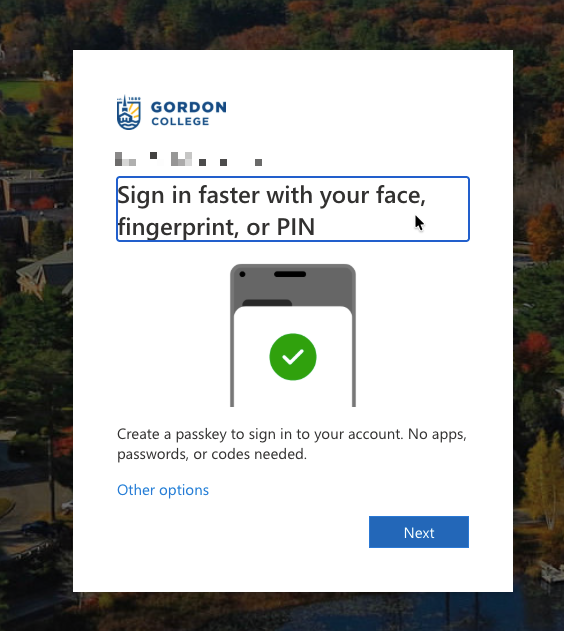
Step 2: When prompted to sign in faster using your face, fingerprint or PIN, select Next.
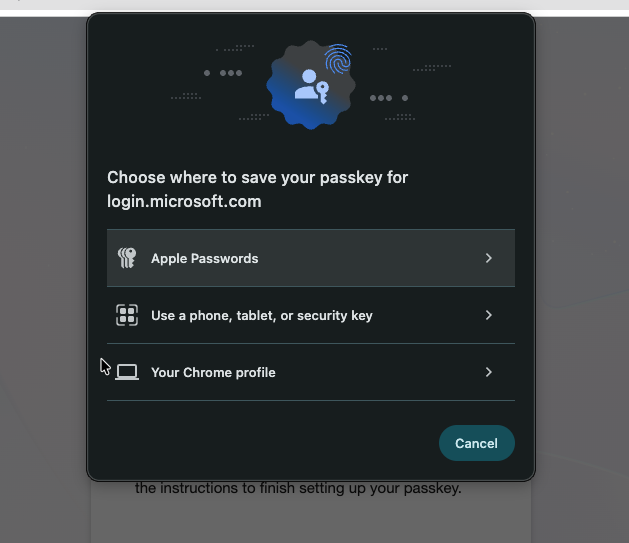
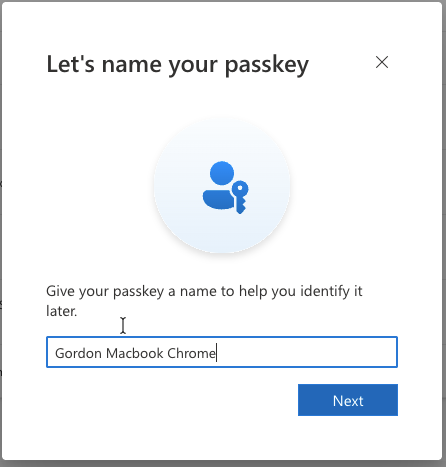
Step 3: Choose where you would like to save your passkey. The available options may vary depending on your device and browser.
Follow the instructions below for your preferred setup method. If you are using a provider not covered in this article, follow the on-screen instructions provided by your device or passkey provider.
If you have not received a registration prompt, you can manually begin setup by visiting mysignins.microsoft.com/security-info and selecting Add sign-in method.
Choose Your Setup Method
Select your preferred passkey provider below to expand the setup instructions.
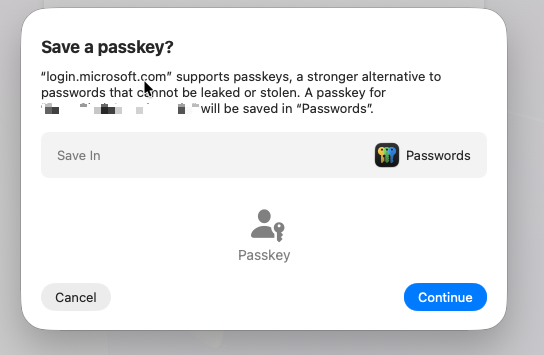
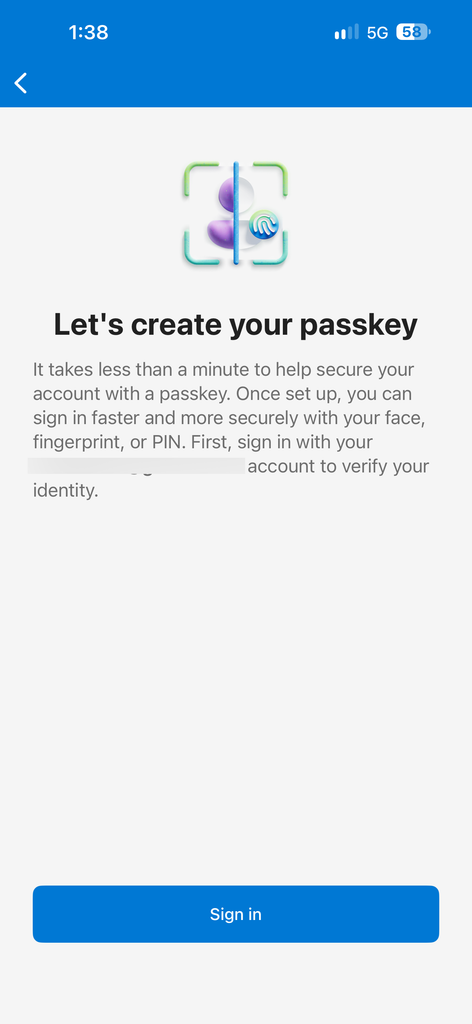
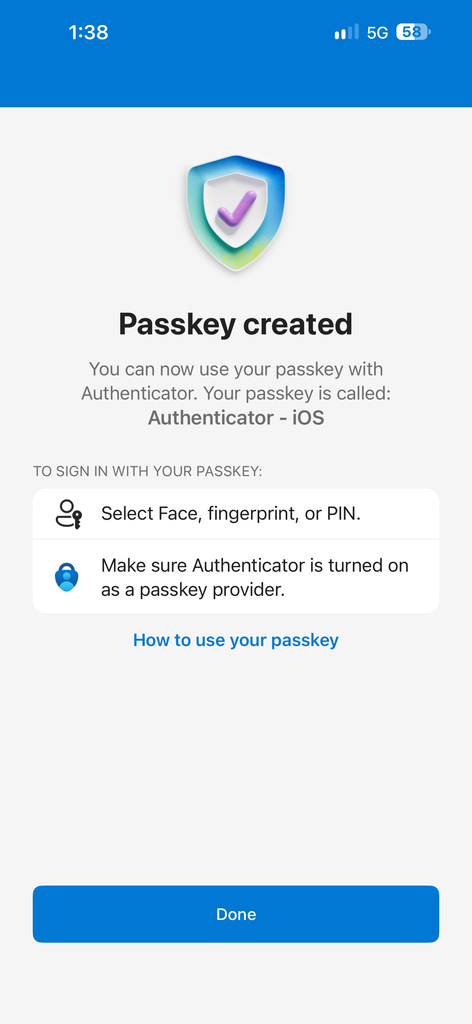
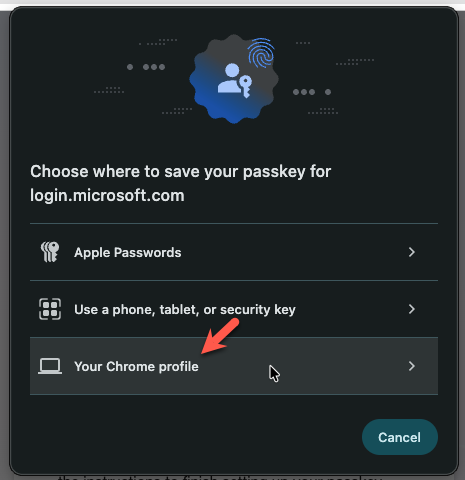
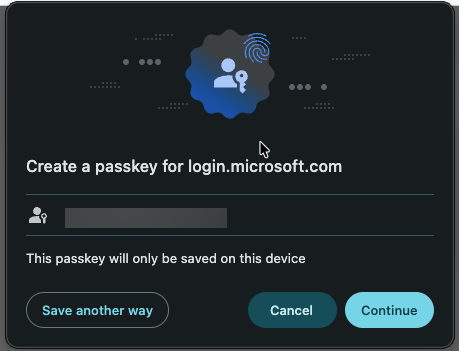
Confirming Your Setup
Once you have completed one of the setup methods above:
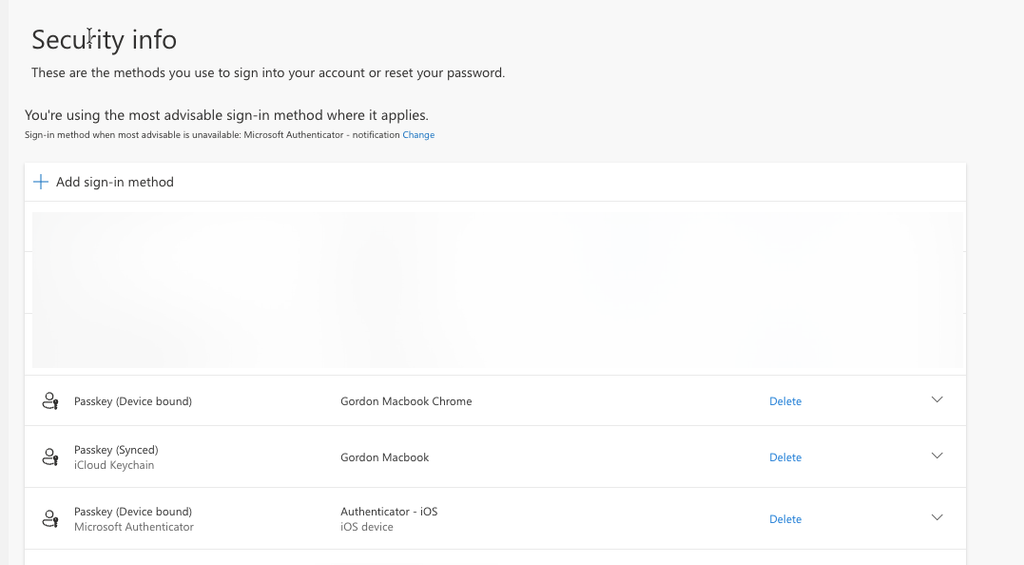
- Visit mysignins.microsoft.com/security-info.
- Verify that your new passkey appears in your list of sign-in methods.
- Test signing in to your Gordon account using your new passkey.
Do not remove your existing authentication methods until you have confirmed that your new passkey works.
Important Reminders
- Only create passkeys on devices or passphrase managers that you control.
- Do not save passkeys on public or shared computers.
- You can register multiple passkeys for your Gordon account.
- Your available passkey options may vary depending on your device, browser and provider.
- If you are replacing your phone or computer, make sure you can still access your Gordon account before removing your old device.
- Some campus services may still require you to sign in using your passphrase and Microsoft Authenticator.
Need Assistance?
If you experience issues setting up or using a passkey, please contact the Center for Technology Services.
Email: [email protected]
Phone: 978-867-4500